Mac and Windows · on-device AI · photos and video · offline · command line
Frame-Find: search your photos and videos by describing them
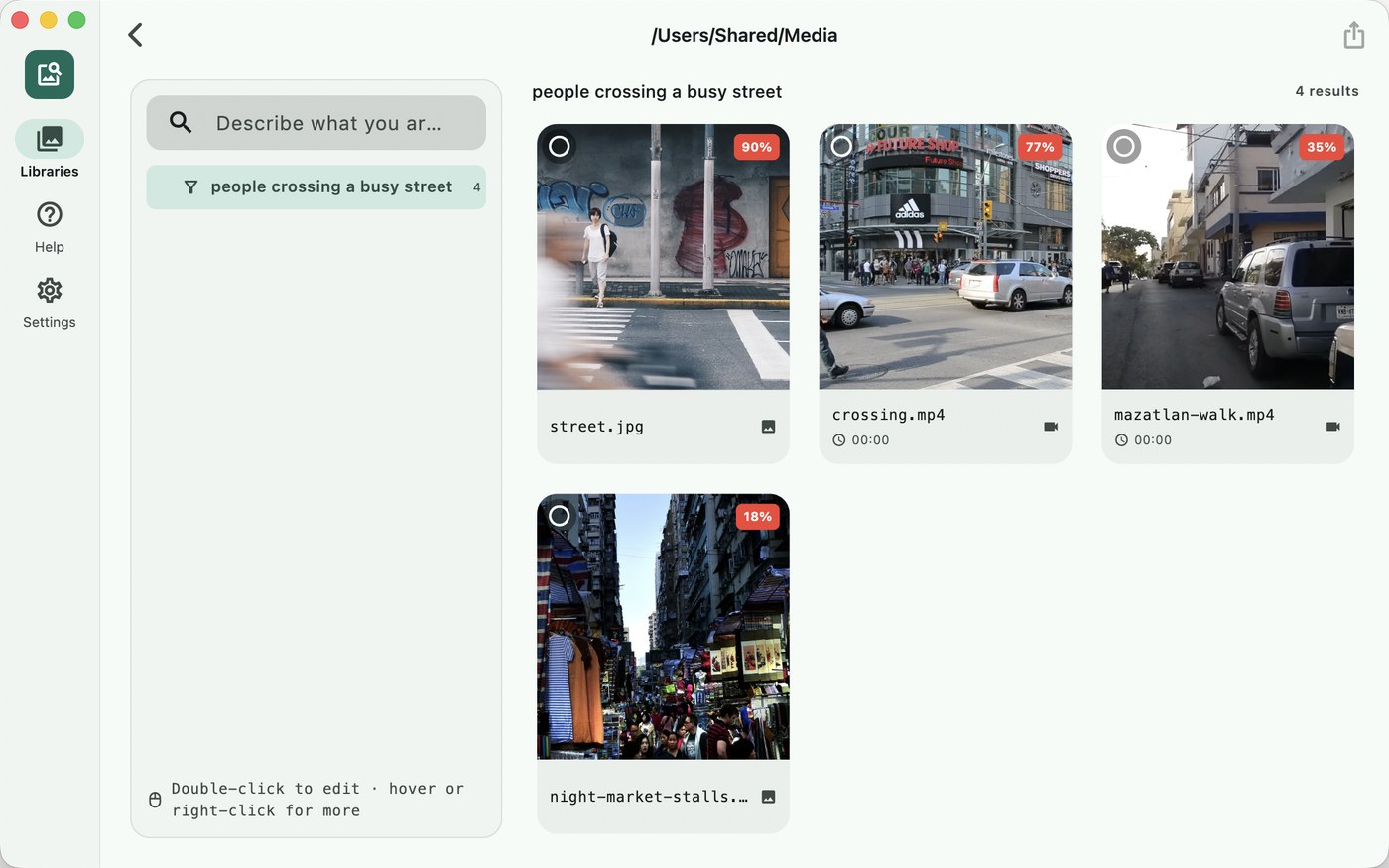
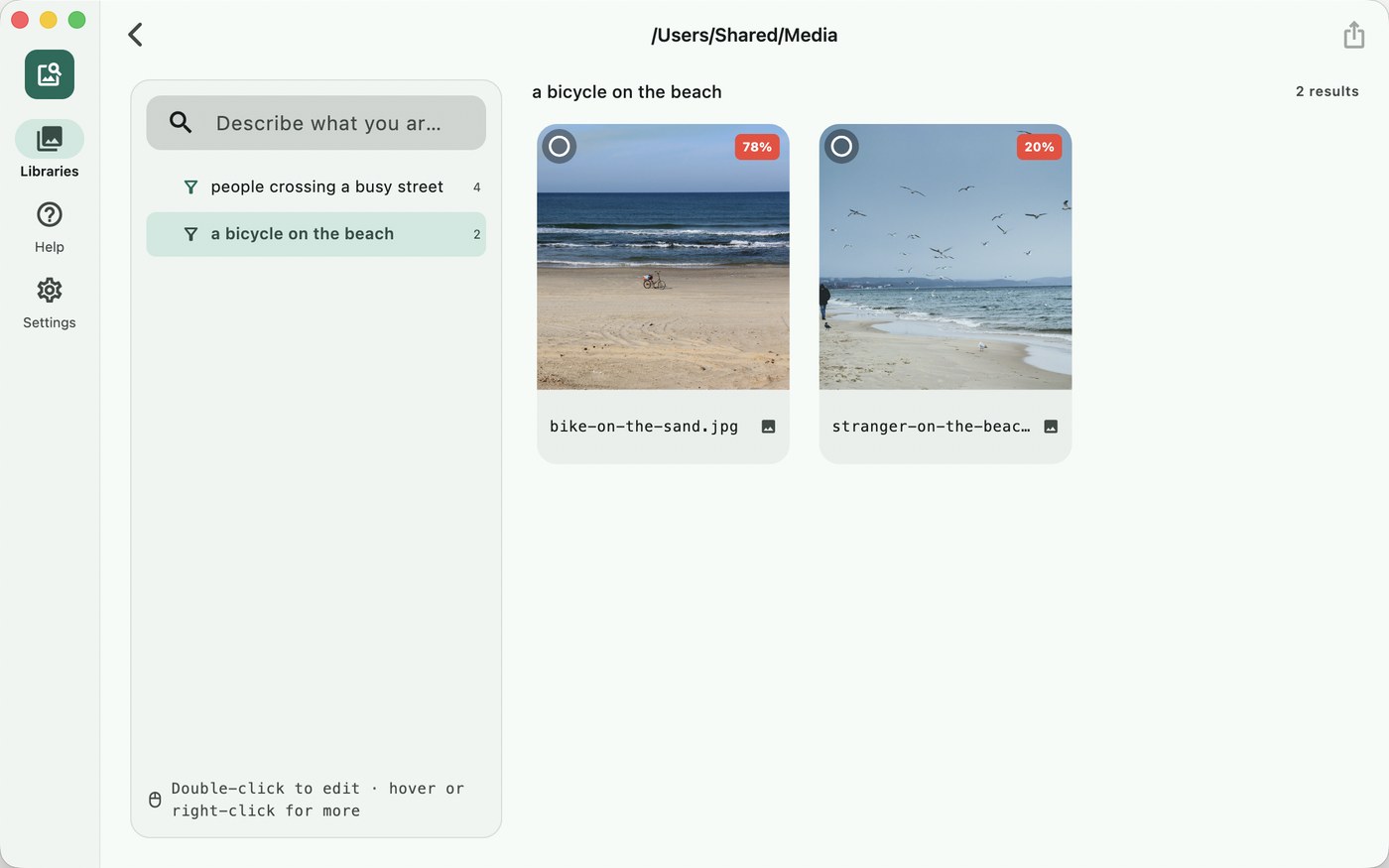
Type “people crossing a busy street” or “a bicycle on the beach” and Frame-Find shows the matching photos and the exact moments inside your videos. No tags, no albums, no file names to remember. Add as many folders as you like; everything is indexed and searched on your own computer.
US$6.99 one-time license · free version included
Version 4.1.0 · Mac: macOS 13 Ventura (13.3) or later, Apple Silicon and Intel, 285 MB download
Windows: Windows 10 (version 2004) or later, 64-bit, free from the Microsoft Store
One-time purchase · one license for Mac and Windows · all 4.x updates included · 14-day money-back guarantee
Your license key
Open Frame-Find → Settings → License → Enter license key and paste the whole line. Keep a copy somewhere safe: the key works offline, on all of your own Macs and Windows PCs, for every 4.x version.
What it does
Add a folder as a library. Frame-Find looks at every photo in it, and at one frame per second of every video, and remembers what each one shows. Then you search the way you would describe the picture to a friend:
- “a dog asleep on the sofa” finds the photo even if the file is called
IMG_4031.HEIC. - “fireworks over the river” finds the moment inside a 40-minute holiday video and shows its timestamp.
- “old black-and-white family photo” pulls the scanned prints out of a folder of thousands.
- “whiteboard with a diagram” finds the meeting snapshot you took three months ago.
Queries work in English, 中文, 日本語, 한국어, Deutsch, Français and Español, and they all search the same index: a photo indexed once can be found with a query in any of the seven languages.
One library per folder, as many as you need
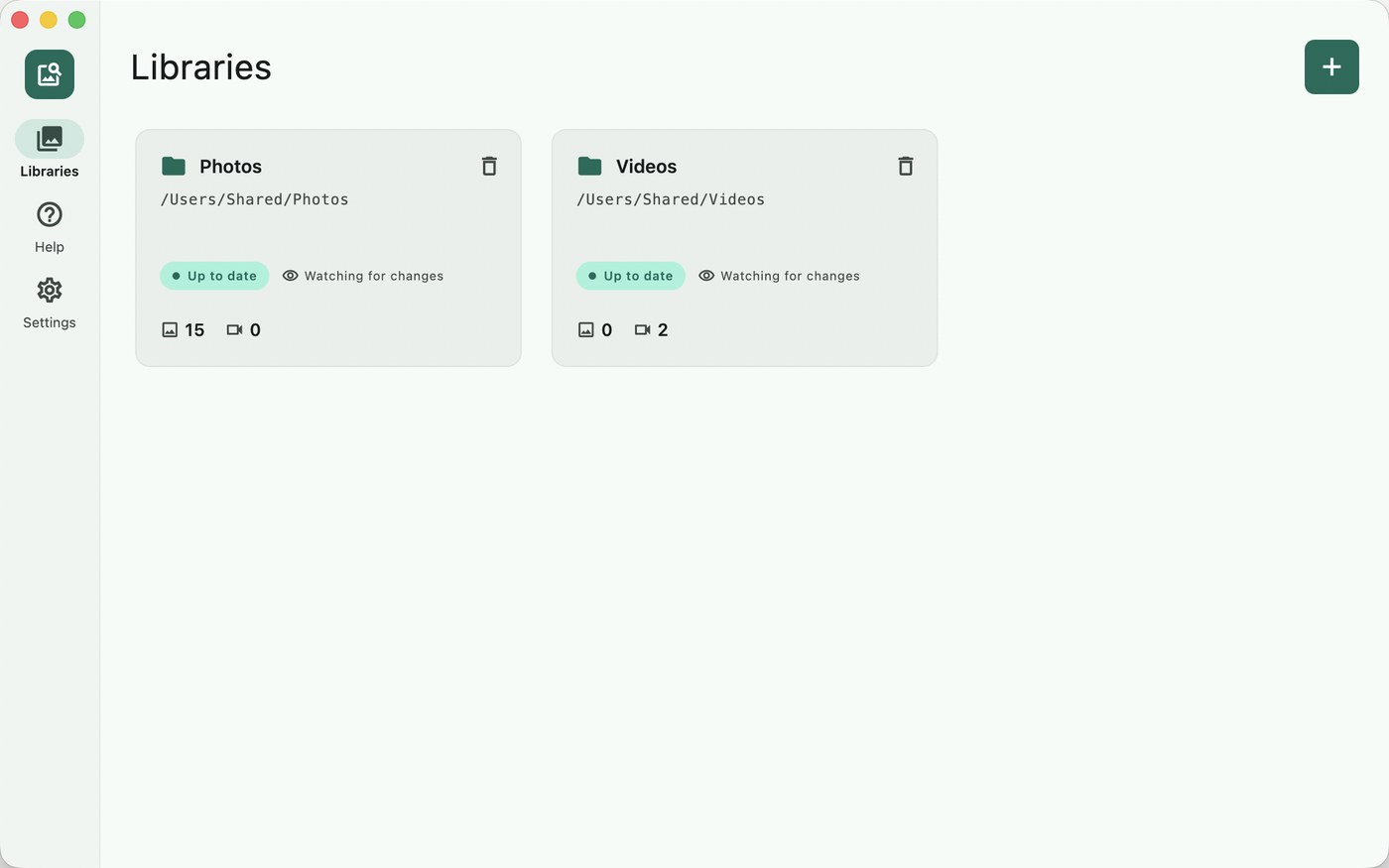
Click + on the Libraries page and choose a folder: your camera roll export, a client's delivery, a drive full of old footage. Each folder becomes its own library with its own index and its own saved searches. There is nothing to switch on and nothing to rebuild. Every library watches its folder, and files you add, change or delete are picked up as they happen, also while Frame-Find sits in the menu bar. Click a card to search that library; the folder path stays in the title bar so you always know where you are. Removing a library deletes only Frame-Find's index, never the folder.
Pick results and hand them on
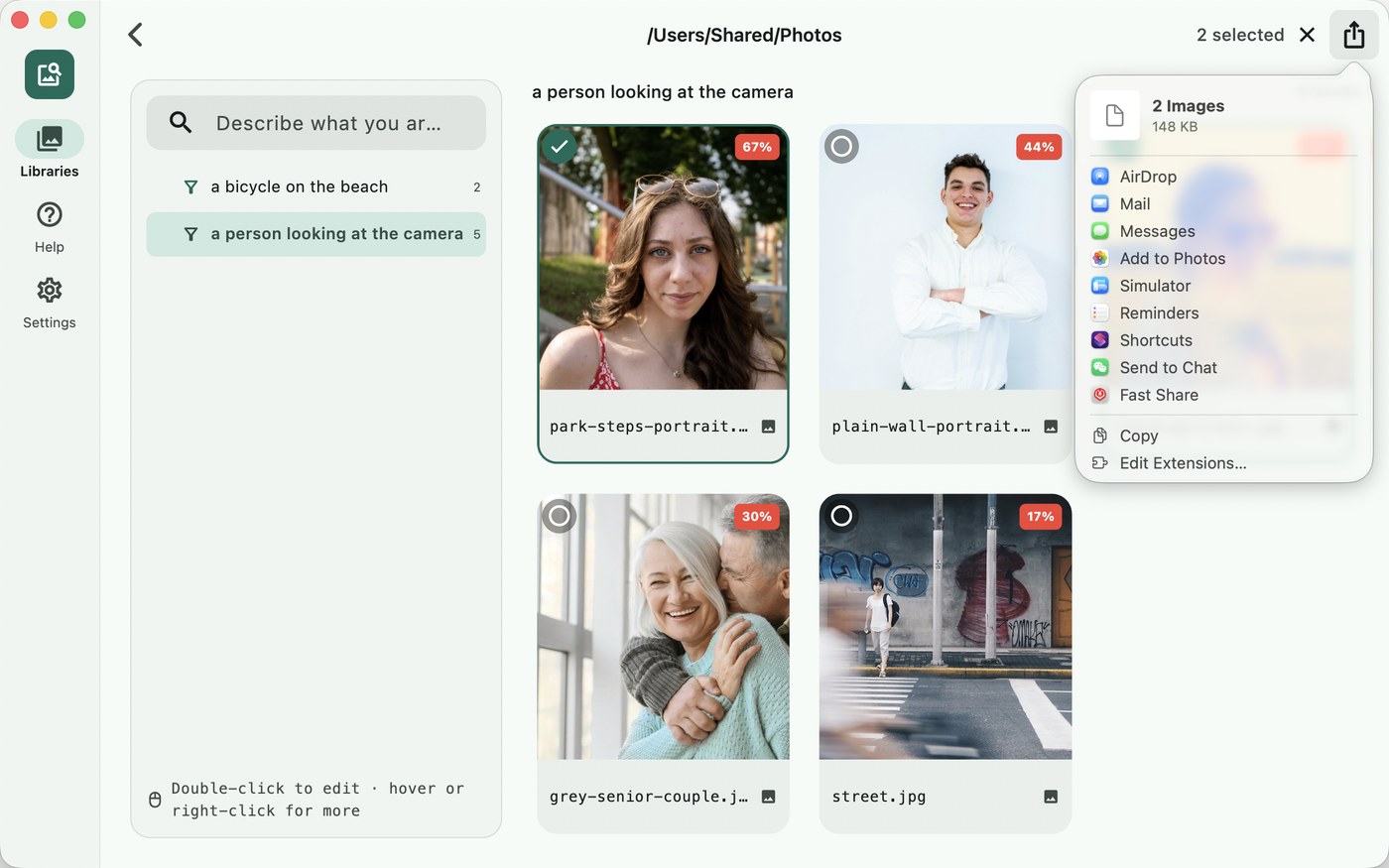
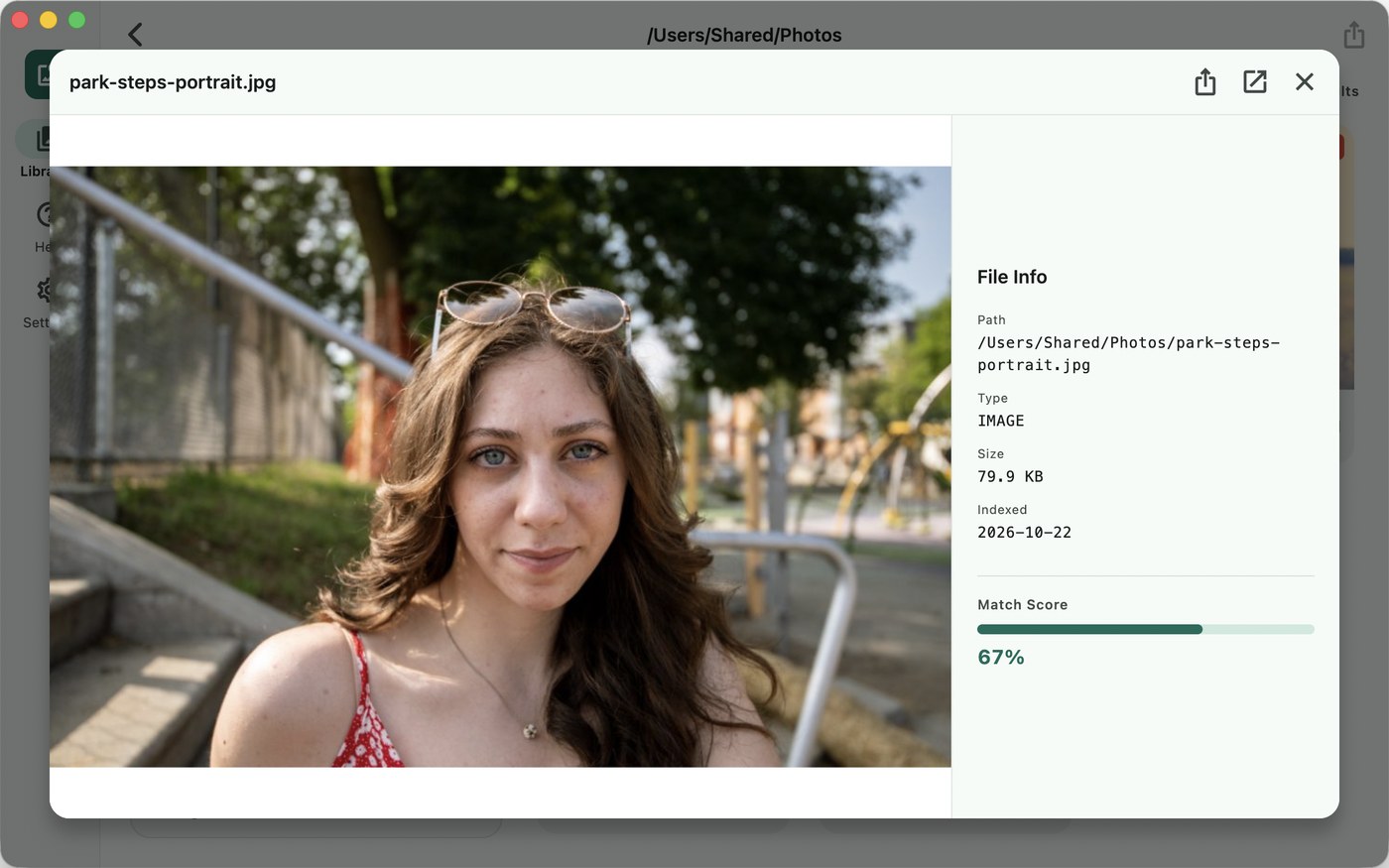
Tick the results you want, then click the share button in the title bar. It opens the standard macOS share sheet, so the files go straight to AirDrop, Mail, Messages, Photos or any other app that accepts images and videos. The preview of a single file has the same button, next to Reveal in Finder. On Windows, the button opens File Explorer with the selected files highlighted, ready to copy, attach or upload.
Narrow it down with a condition tree
A single description is often enough. When it isn't, right-click a search and add a child condition. “beach” → “at sunset” → “with a dog” keeps only what matches every level, and each step shows how many files are left. Each library has its own tree, and it is saved, so the searches you use every week are one click away.
Command line & AI assistants
New in 4.1: Frame-Find includes a command-line tool, framefind, that works on the same libraries as the app. Add and remove libraries, bring them up to date and search them from Terminal on a Mac, or from Command Prompt, PowerShell or Windows Terminal on Windows, or hand the job to an AI assistant that can run Terminal commands, such as Claude Code or Codex. Ask it to “find the photos of the dog on the beach and copy them into a new folder on the Desktop”, and it runs framefind for you. Photo search apps usually stop at their own window; this one fits into your scripts and your assistant's toolbox, and it still runs entirely on your own computer.
--json.framefind library add ~/Pictures/Trips
framefind search "a dog asleep on the sofa"
framefind search "fireworks over a river" --type video --limit 5
framefind search "beach" --and "at sunset" --json
framefind library list- Built for scripts.
--jsonprints one line per result (the file path, a relevance score and, for a video, the second of the matching moment) and a summary line, with fixed exit codes.--pathsprints just the file paths, ready to pipe into the next command. - The app stays in step. Libraries added, removed or indexed from the command line show up in the open app straight away, and the app keeps watching their folders as before.
- Nothing to set up. The tool is inside the app. On a Mac, Settings → Command line & AI assistants → Copy install command gives you one line to paste into Terminal, or call
/Applications/Frame-Find.app/Contents/Resources/framefinddirectly; the first time it adds a folder, macOS asks you once to allow access to it. On Windows,framefindworks in any Command Prompt, PowerShell or Windows Terminal window as soon as Frame-Find is installed from the Microsoft Store. - Still offline. The same on-device model and the same index as the app. Nothing is uploaded, and the assistant only ever sees file paths and scores, not your photos.
Prompt for your AI assistant
Paste this into Claude Code, Codex or another assistant that can use your Terminal, then add what you want done. The same text is in the app under Settings → Command line & AI assistants; on Windows, copy it from there, since the Windows version calls framefind from the PATH instead of the Mac path below.
I have Frame-Find on my Mac. It finds photos and moments in videos by description, offline, and has a command-line tool:
"/Applications/Frame-Find.app/Contents/Resources/framefind"
(also on my PATH as framefind if I installed it). Run it with --help first. Main commands:
  framefind library list                  my libraries: indexed folders, with numbers
  framefind library add <folder>          add a folder and index it (the first time, macOS may show a dialog asking me to allow access: wait for me)
  framefind library remove <library>      remove a library (only the index; my files are never touched)
  framefind sync                          index files added or changed since the app last ran
  framefind search "<description>" [--and "<more>"] [--type image|video] [--library <library>] [--limit N] --json
Search descriptions can be in English, Chinese, Japanese, Korean, German, French or Spanish. With --json, stdout has one JSON line per result (path, media, relevance 0-1, weak, and for videos "time" in seconds of the matching moment) and a final summary line; messages go to stderr. --paths prints only the file paths.
Exit codes: 0 found, 1 nothing found, 2 bad arguments, 3 needs a Frame-Find license, 4 app or model problem, 5 folder access not granted.
If you get exit code 3, tell me instead of working around it. Don't move, rename or delete my files unless I ask.
My task:
The command line is part of the licensed version. Without a license, framefind shows its help and status, and anything else stops with exit code 3 before touching a library, so your assistant can tell you why. It works on Mac and on Windows (Microsoft Store version 4.1.1 or later), with the same commands and the same license.
Free version and license
The download is the full app. Without a license it indexes up to 500 photos and videos across all of your libraries, so you can check on your own files that it finds what you are looking for. A license removes the limit.
| Free | License | |
|---|---|---|
| Photos and videos indexed | Up to 500, across all libraries | No limit |
| Search by description, seven languages | ✓ | ✓ |
| Search inside videos (one frame per second) | ✓ | ✓ |
| Any number of libraries, each kept in sync by itself | ✓ | ✓ |
| Condition tree per library; share sheet (Mac) or File Explorer (Windows); menu bar or tray icon | ✓ | ✓ |
| Command-line tool for scripts and AI assistants (Mac and Windows) | — | ✓ |
| Updates | ✓ | All 4.x updates |
| Price | Free | US$6.99, once |
The model, and how it runs on your computer
- SigLIP 2 from Google (base, 256 px, Apache-2.0), a multilingual model trained to match images with text. Frame-Find ships it inside the app; there is nothing to download after installing.
- The image side runs in Core ML, so on Apple Silicon it uses the Neural Engine. On an M2 Max, 500 photos of about one megapixel were indexed in roughly 15 seconds in our test. Intel Macs work too, more slowly. On Windows the image side runs in ONNX Runtime on the CPU.
- The text side runs in ONNX Runtime with a built-in tokenizer, so a search never leaves the app.
- Videos are sampled at one frame per second with the system's own video decoder (AVFoundation on Mac, Media Foundation on Windows). The index lives in a small database in the app's own data folder, not next to your files. A file that cannot be read is skipped and the rest of the library is still indexed.
Supported files: JPEG, PNG, HEIC, WebP, GIF, BMP and TIFF photos, and MP4, MOV and M4V videos.
Your photos stay on your computer
There is no upload, no account and no subscription. Frame-Find never sends your photos, videos, file names or searches anywhere. Its only network request is the update check: once a day it downloads the list of new versions and refunded orders from swordfishsoft.org, the same file for everyone, and you can turn that off in Settings. On Windows the Microsoft Store handles updates. See our privacy policy.
How buying works
- Download and try the free version. On a Mac, open the disk image and drag Frame-Find to Applications; on Windows, install it from the Microsoft Store. Then add a folder and run a few searches.
- Buy a license on this page. Checkout is run by Paddle, our reseller. You can pay by card, PayPal or any other method shown at checkout, and tax is added where it applies.
- Copy the key. It appears on this page as soon as the payment goes through, and we also email it to the address you paid with. Paste it into Frame-Find → Settings → License, and the rest of your libraries is indexed right away.
Lost your key? Email [email protected] from the address you paid with and we'll send it again.
Questions
How is this different from searching in the Photos app?
Photos searches the pictures inside its own library, mostly by the objects and places it recognises. Frame-Find searches any folder on your Mac or on an external drive, including folders Photos never sees, it understands whole descriptions rather than single keywords, and it searches inside video files frame by frame.
Can ChatGPT or another chatbot do this for me?
Only if you upload your photos and videos to it, one batch at a time, and it still can't keep an index of your whole archive. Frame-Find keeps that index on your Mac and searches it in place, without sending anything. If you use an assistant that runs on your computer, such as Claude Code or Codex, it can drive Frame-Find's command line instead: it gets file paths back, never the photos themselves.
Do I need to know Terminal to use Frame-Find?
No. Everything works in the app's window; the command line is an extra for people who script, and for AI assistants. Copy the prompt above into your assistant and describe what you want in plain words.
Is this the Mac App Store version?
No. Frame-Find is also sold on the Mac App Store as a separate app. This edition comes directly from us, and purchases don't carry over between the two. If you already own the App Store version, you don't need this one.
Which computers does it run on?
Any Mac with macOS 13.3 Ventura or later, Apple Silicon or Intel; indexing is fastest on Apple Silicon. On Windows, any 64-bit PC with Windows 10 version 2004 or later, or Windows 11, installed from the Microsoft Store.
Does one license cover both Mac and Windows?
Yes. The same key unlocks Frame-Find on all of your own Macs and Windows PCs. Paste it into Settings → License on each computer.
Why does Windows install it from the Microsoft Store?
The Store installs Frame-Find with Microsoft's signature and keeps it updated automatically. The Store version is free, exactly like the download for Mac, and you unlock it with a license bought on this page.
macOS asks whether I'm sure I want to open it. Is that normal?
Yes. The first time you open any app downloaded from a website, macOS asks once. Check that the message says Apple checked it for malicious software and none was detected, then click Open. That means the app is signed with our Apple Developer ID and notarized by Apple. If you see a different message, one saying Apple could not verify the app, with no Open button, don't open it. Download it again from this page, and email us if the message comes back.
Can I add more than one folder?
Yes. Each folder you add is a library with its own index, its own saved searches and its own card on the Libraries page. Add a folder on an external drive and the library simply shows “folder not found” while the drive is unplugged; its index is kept and picks up again when the drive is back.
Does Frame-Find move, rename or change my files?
No. It only reads them. Removing a library deletes Frame-Find's index for that folder and nothing else; the folder and the files in it are never touched.
What if it doesn't work for me?
Every purchase has a 14-day money-back guarantee.
Sold by Chongqing Swordfish Technology Co., Ltd. (SwordFishSoft). Our order process is conducted by our online reseller Paddle.com. Paddle.com is the Merchant of Record for all our orders. Terms · Refund policy · Privacy. SigLIP 2 © Google LLC, used under the Apache License 2.0. Photos in the screenshots are public-domain (CC0) sample images.